A slow PC is rarely one single problem. Unused programs start with Windows, services and scheduled tasks keep running, junk files fill the disk, and the registry grows. Changing all of that from Settings, Task Manager, and the registry editor is easy to get wrong.
Optimization Wizard in Windows Manager is a beginner wizard that puts those jobs in one order. The button subtitle in Windows Manager says it plainly: optimize the system with an easy wizard for beginners. Each step either opens the matching Windows Manager tool or applies a group of tweaks, then waits until you come back and continue.
Hover the question-mark icon at the lower left of the wizard for a short summary. The Online Help link under that tip opens this article in your language.
1. What can Optimization Wizard do?
The wizard has 12 steps, then a finish page. You can run every step, or skip any step you do not want.
- Process Manager — end processes that are not signed by Microsoft, and stop them from starting again.
- Windows Update — open Windows Update, and optionally turn off automatic updates.
- Adjust User Account Control (UAC) — turn UAC off, or only soften the prompts.
- System Tweaks — performance, security, and personalization options, including a recommended set.
- Optimize the SSD to extend its life — reduce writes on the system partition when it is a solid-state drive, and check 4K alignment.
- Smart Uninstaller — remove programs you no longer use, and open Settings – Storage.
- Startup Manager — disable startup items, or block Windows automatic startup entirely.
- Task Scheduler Manager — review scheduled tasks, optionally opening the optimization window first.
- Service Manager — review services, optionally opening the optimization window first.
- Junk File Cleaner — remove junk files, or jump ahead with 1-Click Cleaner.
- Registry Cleaner — remove invalid registry entries.
- Registry Defrag — rebuild and re-index the registry. Compact restarts the computer.
The finish page offers Disk Defragmenter only when the system partition is not an SSD. On an SSD it tells you there is no need to defrag.
2. How to open it, and what the buttons do
In Windows Manager, open Automation, then Optimization Wizard.
- Next runs the action for the current step, then moves forward. On tool steps it starts that program and waits until you close it. On Windows Update it opens Settings. On the UAC, system-tweak, and SSD steps it saves the checkboxes you selected.
- Back returns to the previous step. Tweaks are applied when you click Next, so going back does not undo a change by itself.
- Skip moves to the next step without launching the tool and without saving that page.
- Cancel asks “Do you want to close the wizard?” Choose Yes to close it.
- Finish appears on the last page and closes the wizard.
- Create Task, at the lower left next to the help icon, opens My Task with Optimization Wizard already filled in, so you can run the same wizard on a schedule.
The help icon stays at the left of the wizard footer. Its tip names the 12 areas the wizard covers and points to this online help.
3. Processes, Windows Update, and UAC
Step 1 — Process Manager
Next launches Process Manager. If the PC feels slow and you suspect a Trojan or other malware, use Kill Process on processes with an unknown or non-Microsoft digital signature. Kill Processes and Prevent from Running also stops that process from starting again. If a process belongs to a program, a service, or a startup item, remove or disable it later with Smart Uninstaller, Service Manager, or Startup Manager. The wizard waits until you close Process Manager.
Step 2 — Windows Update
Next opens Windows Update in Settings. Updates close security holes that can be used as soon as a computer joins a network or opens a malicious site. Leave updates on unless you have a reason to pause them.
The checkbox Disable Automatic Updates for Windows Update is optional. Windows downloads and installs important and critical updates by default. This tweak turns that automatic behavior off. Apply it only if you will check for updates yourself.
Step 3 — Adjust User Account Control (UAC)
UAC is a Windows security feature. The Continue prompt appears often, and clicking it every time is tedious. This page can turn UAC off. Use other security measures to protect the computer. You must restart before these settings take effect.
- Disable User Account Control (UAC) turns the prompts off. The computer is easier to change, and also easier for unwanted software to change.
- Turn off the secure desktop when elevating keeps the prompt on the normal desktop instead of dimming the screen. Use this only if UAC itself stays on.
- Disable the UAC status warning message hides the warning that UAC is not fully enabled.
4. System tweaks
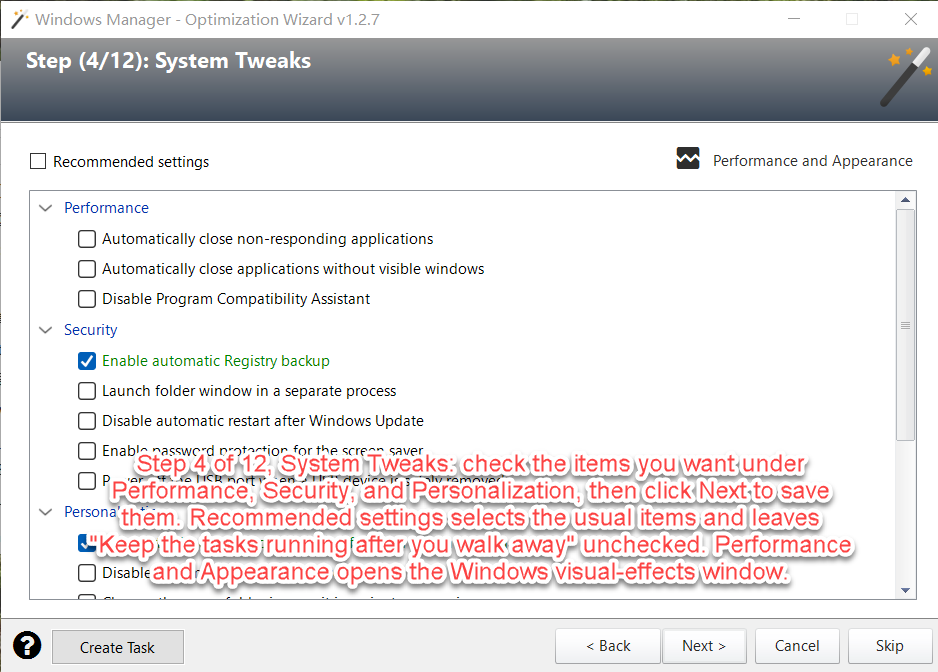
Step 4 lists tweaks under Performance, Security, and Personalization. Check the items you want, then click Next to save them. Recommended settings checks the usual items and leaves Keep the tasks running after you walk away unchecked, because that option is meant for a computer that should stay awake. Performance and Appearance opens the Windows visual-effects window (SystemPropertiesPerformance) if you want to adjust animations separately.
Performance
- Automatically close non-responding applications. During shutdown, Windows sometimes reports a task as Not Responding and asks you to end it. This tweak closes those applications for you.
- Automatically close applications without visible windows. By default, apps with no visible window can block or cancel shutdown. This setting ends them immediately so shutdown is faster.
- Disable Program Compatibility Assistant. PCA watches programs you start and offers a fix when it sees a known compatibility problem. Turn it off only if your programs install and run correctly. That also stops the “This program might not have installed correctly” message.
Security
- Enable automatic Registry backup. Windows no longer copies the registry to
C:\Windows\System32\config\RegBackby default. This tweak turns that backup on. During idle time, about every 10 days, Windows copies SYSTEM, SOFTWARE, SECURITY, and SAM. If Windows fails to start three times in a row, it opens Advanced Startup Options. On “Choose an option,” open Troubleshoot, Advanced options, Command Prompt, then runcopy c:\windows\system32\config\regback\*.* c:\windows\system32\config, restart, and check that Windows starts. - Launch folder windows in a separate process. Each File Explorer window gets its own process, so one crash does not close the others. Each window uses more memory.
- Disable automatic restart after Windows Update. While you are signed in, Windows Update will notify you instead of restarting on its own during a scheduled install. A restart is still required to finish the update.
- Enable password protection for the screen saver. The screen saver asks for the password, and the user cannot turn that protection off.
- Power off the USB port when a USB device is safely removed. Windows normally leaves the port powered. This tweak powers it off after a safe removal.
Personalization
- Automatically expand to the current folder in the navigation pane. The folder tree opens to the folder you are browsing.
- Align the taskbar to the left and Restore classic context menu appear on Windows 11 only. The first moves centered taskbar icons to the left. The second restores the full right-click menu instead of hiding commands behind “Show more options.”
- Disable Automatic Folder View Discovery. Windows guesses a folder type (Pictures, Documents, Music) and then changes the icon, columns, and toolbar. The guess is often wrong. Turn detection off and set the view yourself.
- Change the open-folder icon so an open folder is easier to tell apart from a closed one.
- Speed up mouse pointer movement.
- Show drives with no media mounted, including empty drives, in File Explorer.
- Enable address bar auto-complete mode. As you type, Windows appends a suggestion and shows a drop-down list.
- Keep the tasks running after you walk away. The default plan turns disks off after 20 minutes and sleeps after 30, which stops downloads, media sharing, and recording. This setting keeps those tasks running. Use it on a desktop, or on a notebook that is plugged in. Do not use it on battery.
- Disable system audio auto-leveling. Windows can lower other sounds during a phone call. This turns that behavior off.
- Drag and drop sensitivity. Windows starts a drag after only 4 pixels, so items move by accident. Raise the distance, for example to 50 pixels, which helps on a 4K display. Sign out or restart before the new distance applies. This row includes a number box; check it only if you want to change the distance.
5. Optimize the SSD to extend its life
An SSD wears out after a limited number of write cycles. If the system partition (C:) is on an SSD, step 5 shows options that reduce writes. The wizard detects this itself. When it finds an SSD, the page says “The system partition is on an SSD” and lists the tweaks. When it does not, the page says the system partition is not on an SSD and hides the list. If that detection is wrong, click No, my C: partition is an SSD and the options appear.
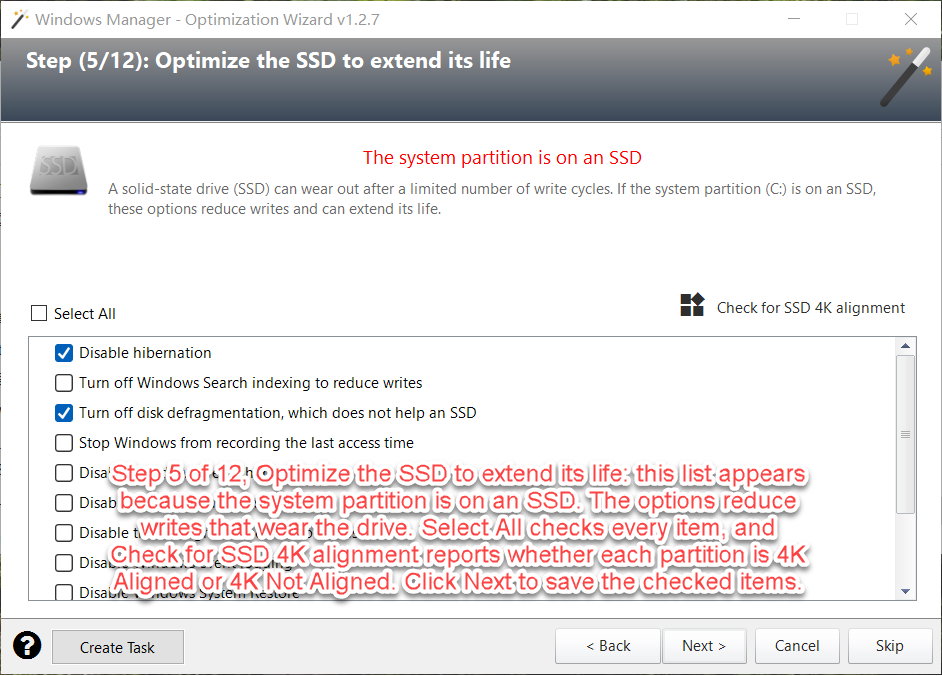
Select All checks every SSD tweak. Check for SSD 4K alignment is separate from the allocation unit size. 4K alignment places the partition on a 4 KB boundary so the SSD can read and write at full speed. The result is reported as 4K Aligned or 4K Not Aligned for each partition. Alignment is a property of how the partition was created; this button checks it, it does not move the partition.
- Disable hibernation. Hibernation writes the system state to disk so the PC can power off and resume later. Sleep keeps that state in memory and uses little power. Disabling hibernation also deletes
hiberfil.sysand frees several gigabytes on the system partition. You will no longer be able to hibernate. - Turn off Windows Search indexing to reduce writes. The index makes search faster and writes often. Turn it off if you rarely use Windows Search.
- Turn off disk defragmentation. An SSD reads any cell at the same speed, so packing files together does not help, and the extra writes shorten its life.
- Stop Windows from recording the last access time. Updating that timestamp on every read causes extra writes.
- Disable Windows Prefetcher and Disable Windows SuperFetch (SysMain). Both were built to hide slow hard-disk load times by preloading programs. On an SSD they add writes and are usually not worth keeping. SuperFetch in particular was designed for hard disks; on an SSD it can hurt both speed and drive health.
- Disable the defragmentation of boot files. Lining up boot files does nothing useful on an SSD.
- Disable Windows event logging. Windows records configuration changes, crashes, and other events. That is useful when you are diagnosing a problem, and it is extra writing if you are not. Leave logging on unless you accept that those records will be missing.
- Disable Windows System Restore. Restore points let you roll back a bad install. They also write to the disk. Turn this off only if another backup already covers the PC.
- Enable the TRIM function. TRIM tells the SSD which blocks are free, which helps performance and life. It works only if the drive supports it. Check the manufacturer’s site if you are unsure.
- Disable the 8.3 name creation. Windows still creates short DOS names for old 16-bit programs. Current programs do not need them, and creating them means more writes.
Click Next to save the checked items. These options are for the system partition on an SSD. Do not treat them as advice for a hard-disk data drive.
6. Uninstall, startup, tasks, services, and junk files
Step 6 — Smart Uninstaller
Next launches Smart Uninstaller and waits until you close it. Removing programs you do not use frees disk space and leaves fewer background pieces behind. Settings – Storage on the same page opens Windows storage settings (ms-settings:storagesense) if you want the built-in storage page as well.
Step 7 — Startup Manager
Next launches Startup Manager. Disabling or removing auto-start programs can shorten boot and sign-in. The checkbox Disable Windows automatic startup functionality is stronger than disabling one item. It blocks Run and RunOnce for the current user and for all users, and it blocks the startup folders for the current user and for all users. Existing items and programs installed later will not auto-start, including programs that legitimately need to. Boot can be faster, and unknown programs cannot launch themselves. Turn this on only when you have very few startup programs, or you are sure nothing needs to start with Windows.
Step 8 — Task Scheduler Manager
Next launches Task Scheduler Manager. The Optimize Task function disables unnecessary scheduled tasks and can make the system more responsive. Check Open the optimization task window directly if you want that window as soon as the tool opens. Leave it unchecked to open the normal task list.
Step 9 — Service Manager
Next launches Service Manager. The Optimize button disables some system services using the tips in that tool, which can shorten startup. Check Open the optimization service window directly to land on that window. Leave it unchecked to open the full service list. Do not disable a service you do not recognize just because it is running; use the tip text in Service Manager.
Step 10 — Junk File Cleaner
Next launches Junk File Cleaner and waits until you close it. 1-Click Cleaner on this page starts 1-Click Cleaner and jumps straight to the finish page, so Registry Cleaner and Registry Defrag are skipped. Use that button when you want a broad junk cleanup and you do not want the two registry steps.
7. Registry Cleaner, Registry Defrag, and the finish page
Step 11 — Registry Cleaner
Next launches Registry Cleaner. It removes invalid registry entries. Review the results in that program before you delete anything, then close it to return to the wizard.
Step 12 — Registry Defrag
Next launches Registry Defrag. A bloated registry can slow boot and day-to-day registry access. The tool rebuilds and re-indexes the registry to remove structural gaps. After defragmentation the registry has a linear structure, which can reduce the time applications spend reading it.
Close all applications before you continue. After you click Compact, the computer restarts on its own. Save your work first. If you do not want a restart, click Skip on this step instead of Next.
Optimization Wizard Finished
The last page confirms that the wizard is complete. If the system partition is an SSD, it shows “The system partition is on an SSD device, so there is no need to defrag it.” If the system partition is a hard disk, Disk Defragmenter opens Windows dfrgui.exe and then closes the wizard. For a non-SSD system partition, running Disk Defragmenter every two or three months keeps files laid out so the disk can read them with less seeking.
8. Important notes
- Run the wizard from an administrator account. UAC, services, startup locations for all users, and many tweaks write to system settings.
- UAC changes need a restart. Drag-and-drop sensitivity may need a restart or a sign-out. Other tweaks apply when you click Next on that page.
- Turning off UAC, System Restore, hibernation, Windows Search, event logging, or defragmentation each removes a protection or a feature. Read the line on the page before you check it. Keep System Restore or another backup if you turn restore points off.
- SSD tweaks apply when the system partition is an SSD, or after you confirm that C: is an SSD. They are not a reason to disable TRIM. TRIM should stay on when the drive supports it.
- 4K alignment is a check, not a repair. A partition that is not aligned has to be recreated with partitioning software; the wizard does not move it.
- “Align the taskbar to the left” and “Restore classic context menu” are Windows 11 items. They do not appear on earlier versions.
- “Keep the tasks running after you walk away” is for a desktop or a notebook on AC power. On battery it stops the PC from sleeping and drains the battery.
- Disabling all automatic startup also blocks programs you may want, including ones installed later. Prefer Startup Manager’s per-item switches unless you really want every auto-start location blocked.
- Registry Defrag’s Compact command restarts the PC. 1-Click Cleaner skips both registry steps and goes to the finish page.
- Create Task only schedules the wizard. It does not by itself click Next through every tool. When the task runs, you still walk through the steps, or you skip the ones you do not want.
- Back does not undo a tweak that Next already saved. Change the checkbox and click Next again, or change it in the tool the step opened.
9. A practical first run
- Open Automation → Optimization Wizard.
- On Process Manager, end only processes you do not trust. Close the tool to continue.
- Open Windows Update and install pending updates unless you have a maintenance window later. Leave automatic updates on unless you check for updates yourself.
- Leave UAC enabled unless the prompts are a real problem. If you do change it, restart afterward.
- On System Tweaks, turn on Recommended settings, read anything you do not recognize, then click Next.
- On the SSD step, continue only if the system partition is an SSD. Prefer TRIM, no defrag, and no last-access timestamps. Leave System Restore and event logging on until you have another backup and you know you do not need the logs.
- Uninstall programs you never open. In Startup Manager, disable items you recognize and do not need. Leave the “disable all automatic startup” box off on a first run.
- Open the optimization windows for tasks and services, and disable only entries the tools mark as safe to stop.
- Clean junk files. Run Registry Cleaner only after you have read its results. Skip Registry Defrag unless you can restart immediately.
- On the finish page, defragment only a hard-disk system partition. Use Create Task if you want My Task to open this wizard again on a schedule.
Try it now
Optimization Wizard sits on the Automation page of Windows Manager, next to tools such as 1-Click Cleaner, Startup Manager, Service Manager, and Registry Cleaner. See the product page for the full set.
Download Windows Manager and open Automation → Optimization Wizard.
